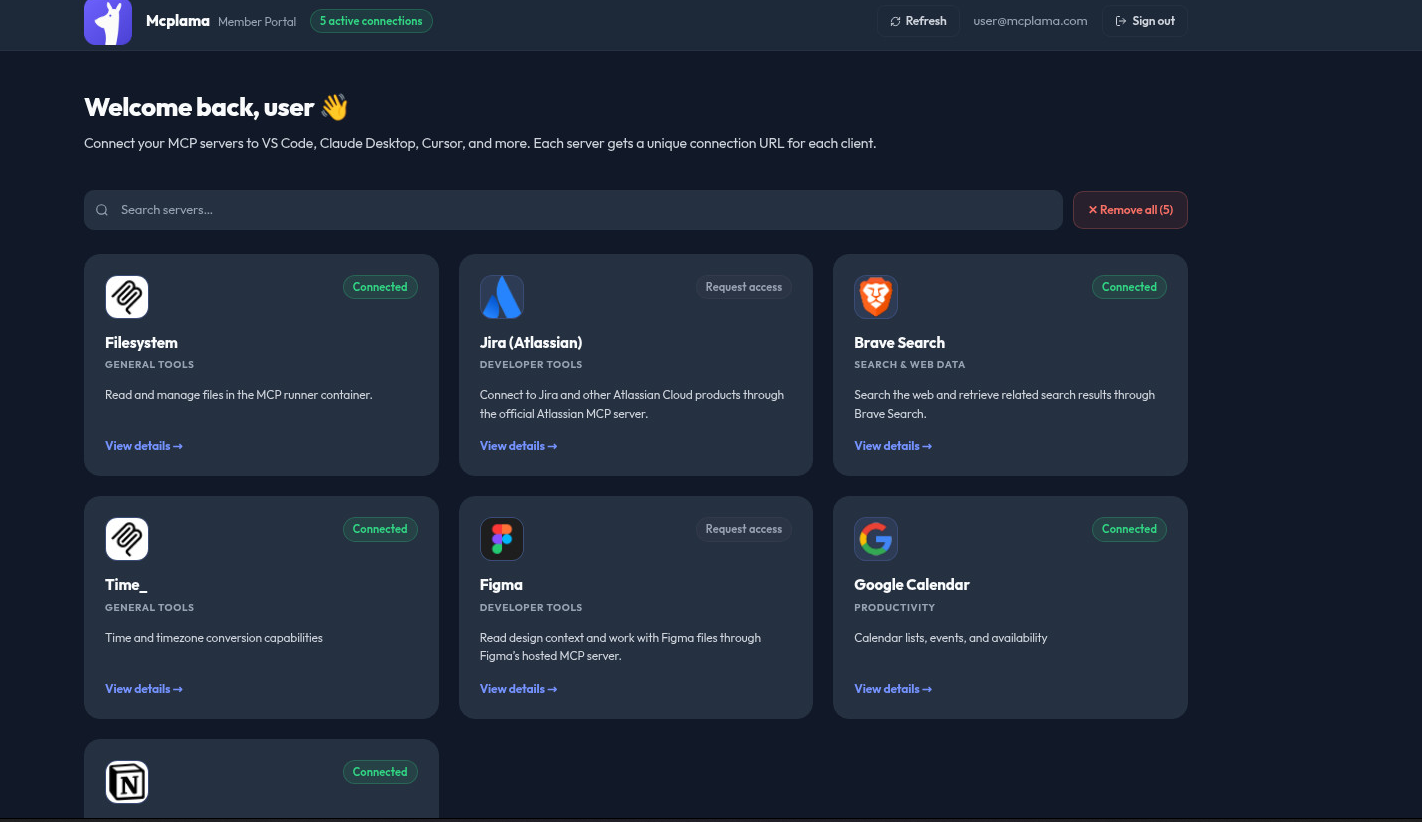
Connecting one AI client to one MCP server is straightforward. Managing that connection across a team raises harder questions: Which people need access? Who approved it? Does a shared credential fit the job, or should every member authorize their own provider account? And how can an administrator understand the relationships between users, connections, servers, and tools?
A useful MCP access management approach answers those questions in one workflow. It combines identity, group membership, server grants, policy checks, protected credentials, and logs that distinguish tool activity from administrative changes.
Why team access needs more than a connection URL
An MCP connection URL gives a client a way to reach a server. By itself, it does not explain which teammate should receive it, how access changes when someone changes roles, or which upstream credentials the server will use. Copying one configuration and credential to every developer makes it harder to revoke access and understand responsibility.
Teams benefit from treating access as several connected decisions: identify the member, grant access to the right server, decide which tools or actions are allowed, and keep the provider credentials in a controlled place. Then make those decisions reviewable over time.
Use groups to grant server access by team
Direct grants work well for a small number of people. As teams grow, managing each user-server relationship one at a time becomes repetitive. Groups let administrators organize members around a team or function and grant MCP server access to the group.
For example, a data group might receive access to database and analytics servers, while an engineering group gets development tools. When someone joins or leaves a group, their group-based access changes with membership. The gateway checks group grants when the member connects; the group assignment is part of authorization, not just a label in the dashboard. Direct access requests can still be used for exceptions.
Keep groups aligned with real responsibilities. A few meaningful groups are easier to review than a large collection of overlapping groups that no longer represent how work is done.
Provision users with a clear onboarding path
Invitations are useful when teammates should complete registration themselves. Direct user creation is useful when an administrator needs to provision an account and set its initial password. Both methods should lead to the same next step: assign the appropriate role, place the member in the right groups, and grant only the servers they need.
After access is approved, members can use a self-service portal to see available servers, request access where needed, authorize their own provider account, and set up their MCP client. This keeps daily connection tasks separate from administrative controls.
Use a Permission Map to understand relationships
Lists of users, servers, and connections answer “what exists?” A permission map helps answer “how are these things connected?” Administrators can explore configured users, connections, servers, and discovered tools, with details and status indicators.
A map is most useful when it reflects authorization data accurately. It should make clear which relationships are configured and which connections are currently active, instead of implying that a visual line alone proves access. Use it as a navigation and review aid, then confirm policy details in the relevant server, group, or user settings.
Separate MCP activity from administrative audit logs
Operational activity and configuration history answer different questions:
- MCP activity records tool calls, including the caller, tool, policy decision, result status, and latency.
- Administrative audit logs record changes such as server configuration and credentials, invitations, user role or status updates, policies, access requests, grants, revocations, and connection changes.
Keeping these records distinct makes investigations easier. If a tool call failed, inspect activity. If an access grant or server setting changed, inspect the administrative event. Safe change summaries should describe what changed without storing secret values or the sensitive contents of policy configuration.
Match OAuth credentials to the identity you need
Remote MCP servers may require OAuth. The OAuth application credentials identify the client application; the provider authorization identifies the user. These are separate credentials and should not be confused.
Depending on the provider and deployment, an administrator can configure shared OAuth client details or each member can supply their own client credentials. In either mode, each member authorizes their own provider account. MCPlama keeps the resulting provider tokens and applies them when proxying that member’s requests. This helps preserve user-level identity when a tool accesses personal or permission-scoped data.
For team-wide services where individual identity is not needed, a shared authorization may be appropriate. Choose per-user authorization when each person should access their own documents, issues, or account data.
Keep the MCP catalog current
A versioned registry can describe more than a package name. MCPlama’s v2 catalog supports metadata for Docker, npm, Python, and remote MCP servers, including setup requirements and OAuth configuration guidance. That gives administrators a clearer starting point when reviewing a server before installation.
Registry metadata is not a substitute for reviewing a server’s publisher, source, permissions, and network or filesystem access. Treat catalog entries as setup guidance, and apply your organization’s own approval and policy process.
A repeatable MCP access workflow
- Provision the user and assign an appropriate role.
- Place the user in groups that reflect their work.
- Grant access to the MCP servers those groups need.
- Set tool policies and choose shared or per-user authorization.
- Have members connect through their portal and configure their AI clients.
- Review Permission Map relationships, MCP activity, and administrative audit events as the setup changes.
This workflow makes access easier to explain and maintain as teams add servers and clients. It also gives administrators a clearer trail when someone asks why a user can reach a particular tool.
Manage team access with MCPlama
MCPlama is an open-source, self-hosted MCP gateway with group-based server grants, user provisioning, a Permission Map, separate MCP activity and administrative audit logs, and remote OAuth support. Explore the team management documentation, read about administrative audit logs, or browse the MCP server registry.
Put your MCP access model in place
Install MCPlama, configure the servers your team needs, and manage member access from one self-hosted gateway.
Read the installation guide →